Motec
Telemetrick provides most advanced and extensive export to Motec i2.
Motec file writing is done thanks to sim-to-motec (Reverse engineering for interoperability) from GeekyDeaks!
Motec exporter files can be read by MoTeC's i2 software for analysis. i2 (Standard / Pro) is available for free on MoTeC's website, to be used with their ECU and data loggers. MoTeC has no affiliation with Assetto Corsa nor Telemetrick, please do not ask them for support.
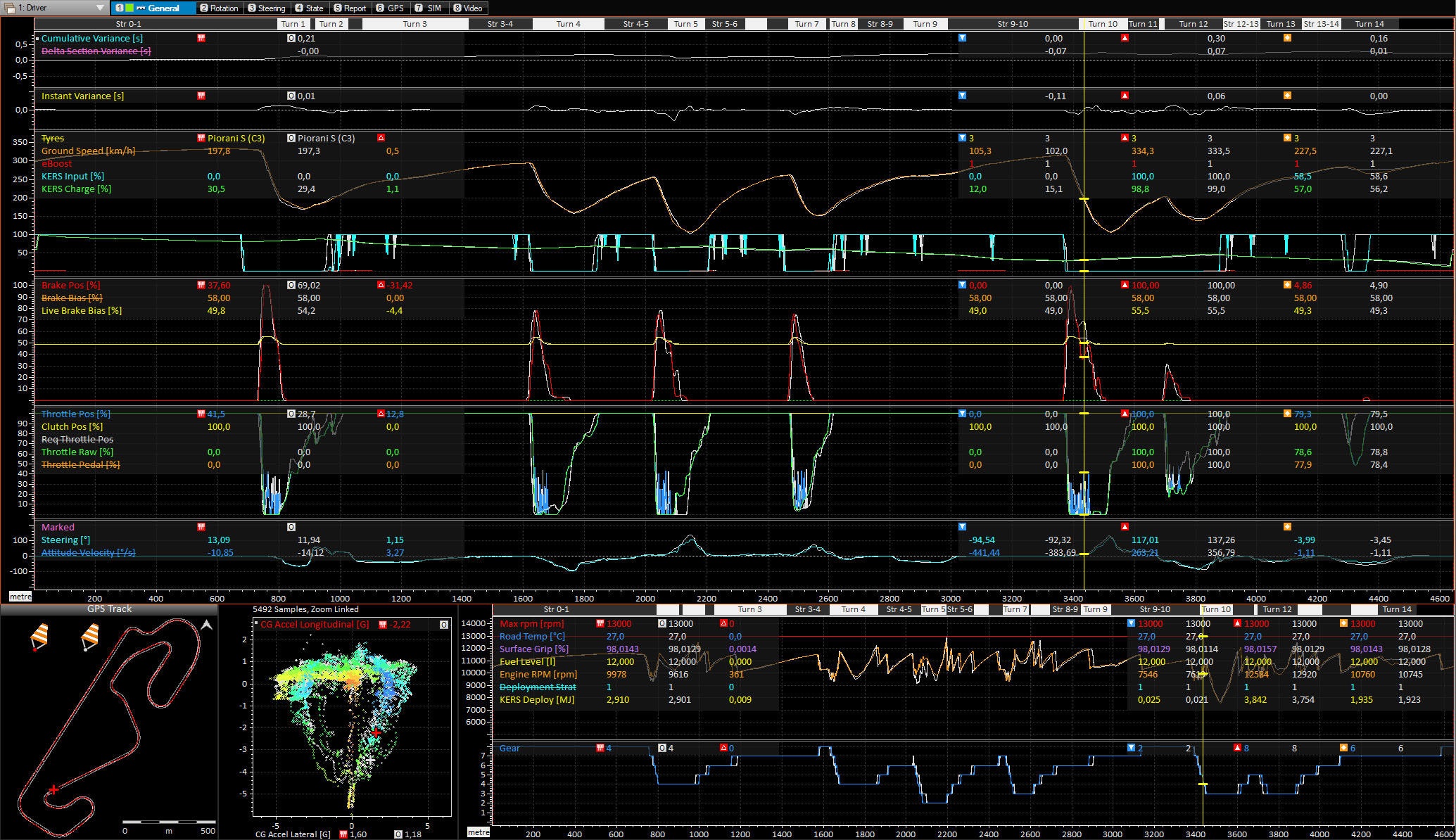
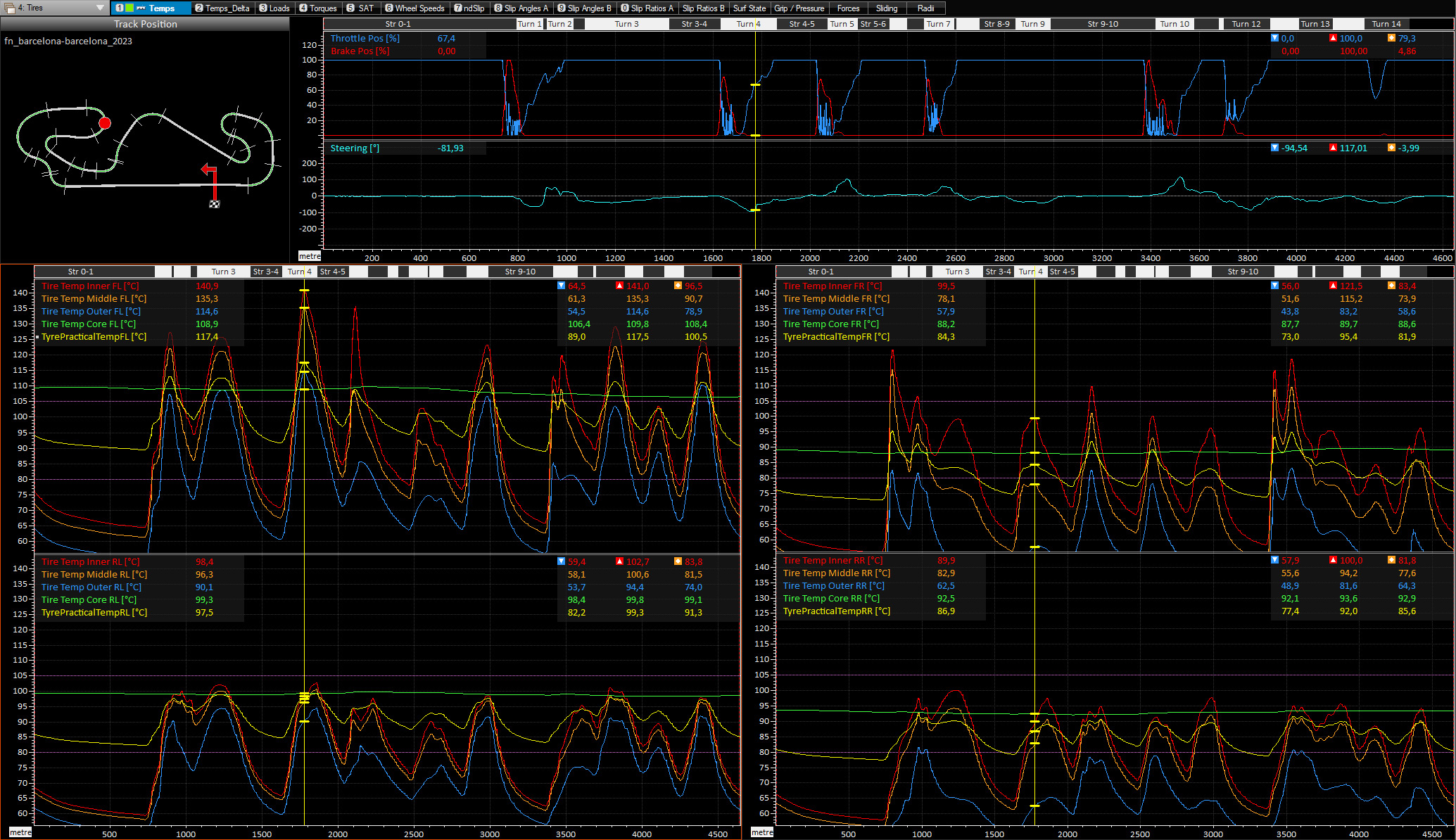
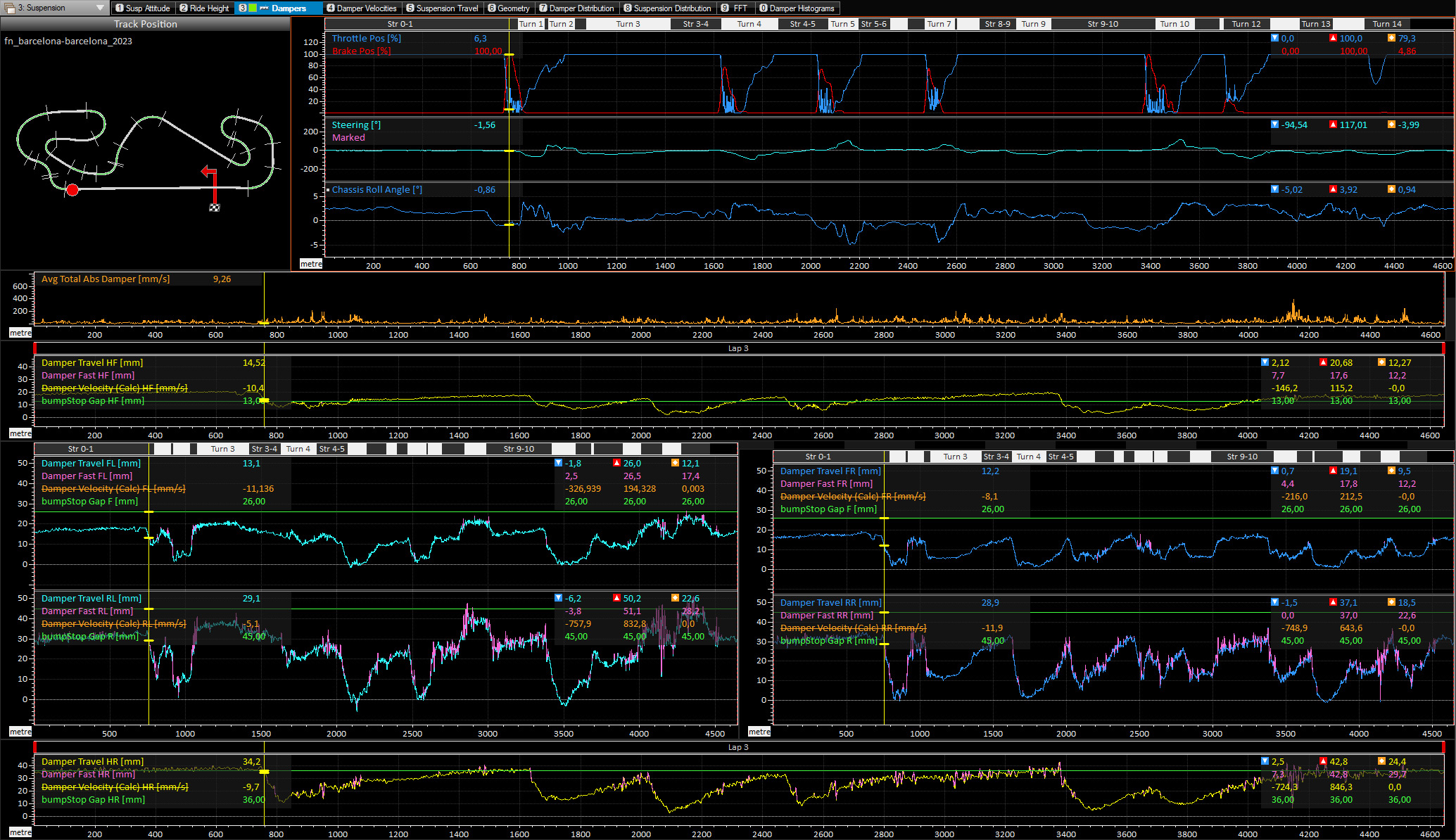
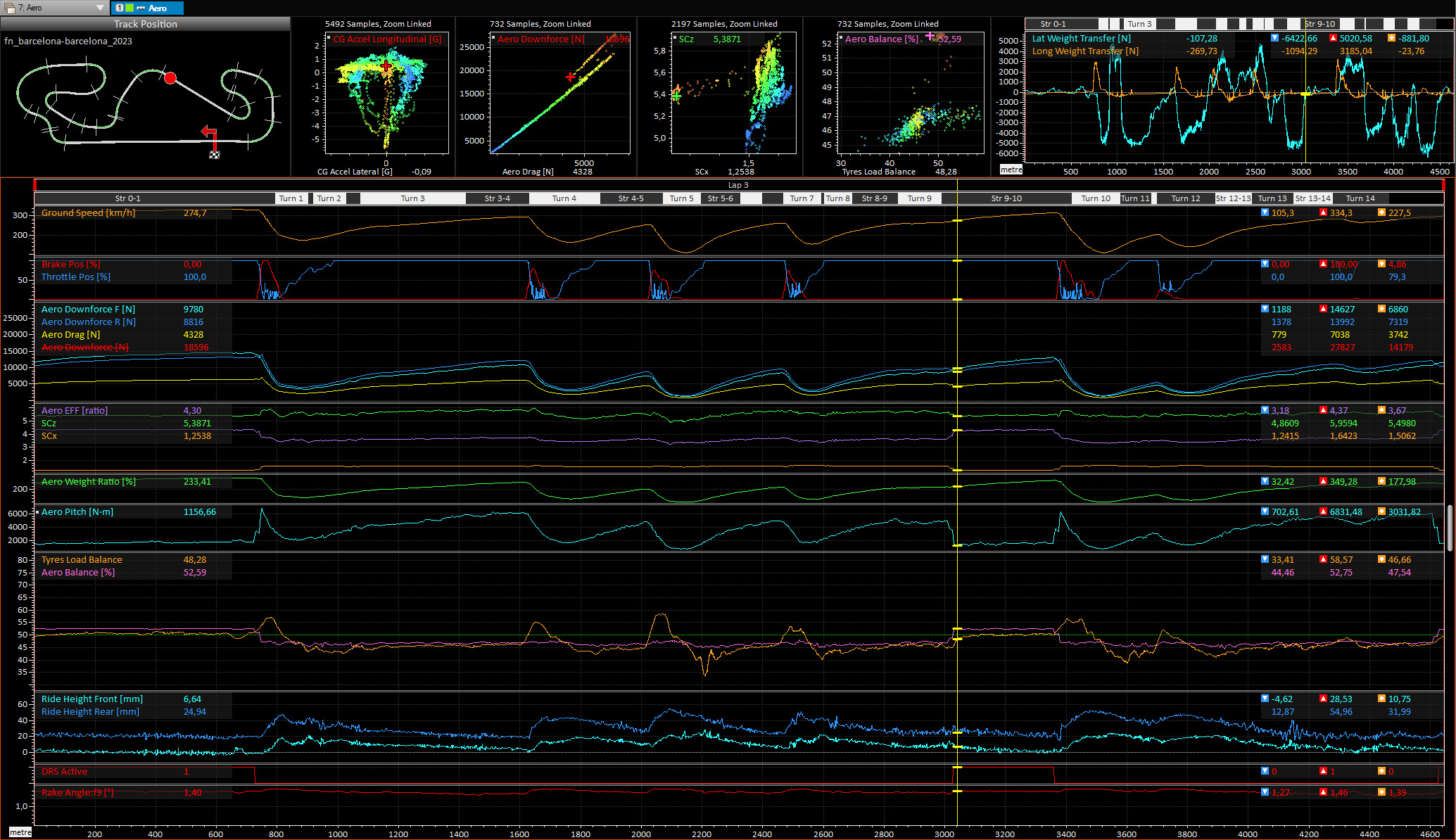
App Settings
- Enable logging (Common Tab).
- Enable Motec in export options (Settings Tab).
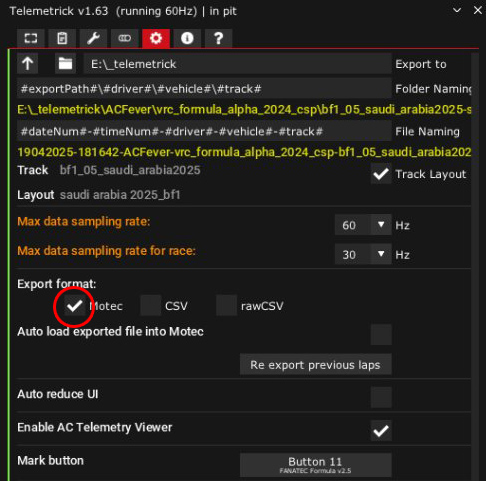
Logging
Telemetrick logger will automatically start logging then stop logging and export to Motec/CSV/acViewer whenever:
- Practice / Qualifying / Track Day: Logger start when you leave Pit and stop when you are back to Pit (driving or teleport).
- Hotlap: Logger start automatically on track, stop when you are back to Pit (driving or teleport).
- Hill Climb / Rally stage: Logger starts when passing start line, stop automatically when passing finish line.
- Race: Logger will start on grid at start of the race. It will stop when race ends, allowing to do pitstop(s) without terminating logging. In Race, you don't have to do one full lap to get a valid log and export it. It is always considered valid, to allow analysis of race start or T1 incident!
For offline Race or Weekend, it's better to enable CSP / New AI Behavior / AI race cooldown lap option. It will make saving stint at the end of the race more reliable (automatic, 1s after passing finish line).
You can always use UI Save and Cancel buttons!
Force Race Mode: This option allow you to override current session mode to Race Mode:
- Logger automatically start leaving pit.
- Logger stint always valid / export.
- Logger don't automatically stop back in pit.
- Logger don't automatically restart when in pit.
Note that in Force Race Mode you will have to save log manually!
Telemetrick Workspace
Once you have installed Motec i2, you can import Telemetrick workspace:
First, in the downloaded telemetrick_vx.zip, go into workspace folder and unzip Telemetrick.zip.
- File / Workspace / Open Workspace
- Click Import button
- Select
Workspace.i2wspfrom previously unzipped Telemetrick workspace folder.
Motec will import this workspace files into its own folder (C:\Users\[[username]]\Documents\MoTeC\i2\Workspaces\Telemetrick\), you can delete previously unzipped folder.
You are now ready to open a log file!
When updating the workspace if required with a new Telemetrick version, you got into C:\Users\[[username]]\Documents\MoTeC\i2\Workspaces\Telemetrick\, delete everything apart Track Maps to keep your generated Trackmaps, and copy everything from Telemetrick.zip into.
Motec data
Log Details
Visible in Tools / Details, some are already mapped as Math workspace/LogDetails
| Detail | Unit | Math Name |
|---|---|---|
| Venue | ||
| Venue Length | m | Track Length |
| Venue Category | ||
| Driver | ||
| Vehicle Id | ||
| Vehicle Desc | ||
| Session | ||
| Sky | ||
| Baro Pressure | bar | |
| Rel Humidity | % | |
| Weather Comment | ||
| Vehicle Weight | kg | Vehicle Weight |
| Fuel Tank Capacity | l | |
| Vehicle Track | m | Vehicle Track |
| Vehicle Wheelbase | m | Vehicle Wheelbase |
| Gear 1/ 10 | ||
| Vehicle COG | % | Car COG Location |
| Tyre Consumption Rate | ||
| Fuel Consumption Rate | ||
| Ballast | kg | Ballast |
| Restrictor | % | Restrictor |
| InputMode |
Maths Items
These are fixed data, per stint, usable in Math Expressions or in graphs
| Name | Unit |
|---|---|
| Max Fuel | l |
| Max rpm | rpm |
| Max ICE Power | hp |
| Max ICE Torque | Nm |
| Max KERS KJ | KJ |
| Max ERS per lap | KJ |
| Max Turbo Boost | KJ |
| ABS Present | |
| TC Present | |
| TC2 Present | |
| Auto Shift | |
| Auto Clutch | |
| allowedTyresOut | |
| FFB Mult | |
| FFB Base | |
| Damper THLD Bump F | mm/s |
| Damper THLD Rebound F | mm/s |
| Damper THLD Bump R | mm/s |
| Damper THLD Rebound R | mm/s |
| Damper THLD Bump HF | mm/s |
| Damper THLD Rebound HF | mm/s |
| Damper THLD Bump HR | mm/s |
| Damper THLD Rebound HR | mm/s |
| bumpStop Gap F | mm |
| bumpStop Gap R | mm |
| bumpStop Gap HF | mm |
| bumpStop Gap HR | mm |
List of data channels for all cars
| Channel | Unit | Freq |
|---|---|---|
| UTC Time | s | 1Hz |
| Last Sector Time | s | 1Hz |
| Fuel Level | l | 1Hz |
| Air Temp | C | 1Hz |
| Air Density | kg/m3 | 1Hz |
| Road Temp | C | 1Hz |
| Surface Grip | % | 1Hz |
| Wind Direction | deg | 1Hz |
| Wind Speed | kph | 1Hz |
| Race Flag | 1Hz | |
| Brake Bias | % | 1Hz |
| Lap Invalidated | 1Hz | |
| Engine Brake Setting | 1Hz | |
| Tire Pressure FL | psi | 1Hz |
| Tire Pressure FR | psi | 1Hz |
| Tire Pressure RL | psi | 1Hz |
| Tire Pressure RR | psi | 1Hz |
| Tire Rubber Grip FL | % | 1Hz |
| Tire Rubber Grip FR | % | 1Hz |
| Tire Rubber Grip RL | % | 1Hz |
| Tire Rubber Grip RR | % | 1Hz |
| VirtualKm FL | km | 1Hz |
| VirtualKm FR | km | 1Hz |
| VirtualKm RL | km | 1Hz |
| VirtualKm RR | km | 1Hz |
| Car Damage Front | 1Hz | |
| Car Damage Right | 1Hz | |
| Car Damage Rear | 1Hz | |
| Car Damage Left | 1Hz | |
| Tyres Compound | 1Hz | |
| Race Position | 1Hz | |
| Engine Life Left | 1Hz | |
| Gearbox Damage | 1Hz | |
| Oil Temperature | deg | 1Hz |
| Water Temperature | deg | 1Hz |
| ABS Mode | 1Hz | |
| TC Mode | 1Hz | |
| TC2 Mode | 1Hz | |
| Fuel Map | 1Hz | |
| Car Pos Norm | 10Hz | |
| Num Tires Off Track | 10Hz | |
| DRS Available | 10Hz | |
| DRS Active | 10Hz | |
| ERS Is Charging | 10Hz | |
| KERS Charge | % | 10Hz |
| KERS Deployed Energy | kJ | 10Hz |
| Relative Plank Wear | mm | 10Hz |
| Mark | 10Hz | |
| sim_FFB Pure | % | 10Hz |
| sim_FPS | 10Hz | |
| sim_Physic Late | 10Hz | |
| sim_CPU Time | 10Hz | |
| Tire Dirt Level FL | 10Hz | |
| Tire Dirt Level FR | 10Hz | |
| Tire Dirt Level RL | 10Hz | |
| Tire Dirt Level RR | 10Hz | |
| Tire Temp Core FL | C | 10Hz |
| Tire Temp Core FR | C | 10Hz |
| Tire Temp Core RL | C | 10Hz |
| Tire Temp Core RR | C | 10Hz |
| Tire Temp Inner FL | C | 10Hz |
| Tire Temp Inner FR | C | 10Hz |
| Tire Temp Inner RL | C | 10Hz |
| Tire Temp Inner RR | C | 10Hz |
| Tire Temp Middle FL | C | 10Hz |
| Tire Temp Middle FR | C | 10Hz |
| Tire Temp Middle RL | C | 10Hz |
| Tire Temp Middle RR | C | 10Hz |
| Tire Temp Outer FL | C | 10Hz |
| Tire Temp Outer FR | C | 10Hz |
| Tire Temp Outer RL | C | 10Hz |
| Tire Temp Outer RR | C | 10Hz |
| Tire Grain FL | 10Hz | |
| Tire Grain FR | 10Hz | |
| Tire Grain RL | 10Hz | |
| Tire Grain RR | 10Hz | |
| Tire Blister FL | 10Hz | |
| Tire Blister FR | 10Hz | |
| Tire Blister RL | 10Hz | |
| Tire Blister RR | 10Hz | |
| Brake Temp FL | C | 10Hz |
| Brake Temp FR | C | 10Hz |
| Brake Temp RL | C | 10Hz |
| Brake Temp RR | C | 10Hz |
| Drivetrain Torque | Nm | 10Hz |
| Drivetrain Power | hp | 10Hz |
| Car Heading | deg | 10Hz |
| Caster Angle | deg | 10Hz |
| Aero Drag | N | 10Hz |
| Aero Downforce F | N | 10Hz |
| Aero Downforce R | N | 10Hz |
| Session Time Left | s | 30Hz |
| Clutch Pos | % | 30Hz |
| ABS Active | 30Hz | |
| TC Active | 30Hz | |
| KERS Input | % | 30Hz |
| Turbo Boost | 30Hz | |
| Ground Speed | kph | 30Hz |
| Lap Time | s | 30Hz |
| Last Lap Time | s | 30Hz |
| Lap Number | 30Hz | |
| Lap Distance | m | 30Hz |
| Throttle Pos | % | 30Hz |
| Brake Pos | % | 30Hz |
| Handbrake Pos | % | 30Hz |
| Steering Angle | deg | 30Hz |
| Gear | 30Hz | |
| Engine RPM | rpm | 30Hz |
| Brake Torque FL | Nm | 30Hz |
| Brake Torque FR | Nm | 30Hz |
| Brake Torque RL | Nm | 30Hz |
| Brake Torque RR | Nm | 30Hz |
| ndSlip FL | 30Hz | |
| ndSlip FR | 30Hz | |
| ndSlip RL | 30Hz | |
| ndSlip RR | 30Hz | |
| Car Coord X | m | 30Hz |
| Car Coord Y | m | 30Hz |
| Car Coord Z | m | 30Hz |
| Chassis Velocity X | m/s | 30Hz |
| Chassis Velocity Y | m/s | 30Hz |
| Chassis Velocity Z | m/s | 30Hz |
| Wheel Angular Speed FL | rad/s | 30Hz |
| Wheel Angular Speed FR | rad/s | 30Hz |
| Wheel Angular Speed RL | rad/s | 30Hz |
| Wheel Angular Speed RR | rad/s | 30Hz |
| Drive Train Speed | kph | 30Hz |
| Chassis Pitch Rate | deg/s | 30Hz |
| Chassis Pitch Angle | deg | 30Hz |
| Chassis Roll Rate | deg/s | 30Hz |
| Chassis Roll Angle | deg | 30Hz |
| Chassis Yaw Rate | deg/s | 30Hz |
| CG Height | mm | 30Hz |
| Ride Height Front | mm | 30Hz |
| Ride Height Rear | mm | 30Hz |
| Tire Load FL | N | 30Hz |
| Tire Load FR | N | 30Hz |
| Tire Load RL | N | 30Hz |
| Tire Load RR | N | 30Hz |
| Tire Loaded Radius FL | mm | 30Hz |
| Tire Loaded Radius FR | mm | 30Hz |
| Tire Loaded Radius RL | mm | 30Hz |
| Tire Loaded Radius RR | mm | 30Hz |
| Tire Slip Angle FL | deg | 30Hz |
| Tire Slip Angle FR | deg | 30Hz |
| Tire Slip Angle RL | deg | 30Hz |
| Tire Slip Angle RR | deg | 30Hz |
| Tire Slip Ratio FL | % | 30Hz |
| Tire Slip Ratio FR | % | 30Hz |
| Tire Slip Ratio RL | % | 30Hz |
| Tire Slip Ratio RR | % | 30Hz |
| Tire Long Fx FL | N | 30Hz |
| Tire Long Fx FR | N | 30Hz |
| Tire Long Fx RL | N | 30Hz |
| Tire Long Fx RR | N | 30Hz |
| Tire Lat Fy FL | N | 30Hz |
| Tire Lat Fy FR | N | 30Hz |
| Tire Lat Fy RL | N | 30Hz |
| Tire Lat Fy RR | N | 30Hz |
| Steering Torque | Nm | max |
| sim_FFB Final | % | max |
| Camber FL | deg | max |
| Camber FR | deg | max |
| Camber RL | deg | max |
| Camber RR | deg | max |
| Toe In FL | deg | max |
| Toe In FR | deg | max |
| Toe In RL | deg | max |
| Toe In RR | deg | max |
| CG Accel Lateral | G | max |
| CG Accel Longitudinal | G | max |
| CG Accel Vertical | G | max |
| Suspension Travel FL | mm | max |
| Suspension Travel FR | mm | max |
| Suspension Travel RL | mm | max |
| Suspension Travel RR | mm | max |
| Self Align Torque FL | Nm | max |
| Self Align Torque FR | Nm | max |
| Self Align Torque RL | Nm | max |
| Self Align Torque RR | Nm | max |
| Damper Travel FL | mm | max |
| Damper Travel FR | mm | max |
| Damper Travel RL | mm | max |
| Damper Travel RR | mm | max |
| Damper Travel HF | mm | max |
| Damper Travel HR | mm | max |
Car setup
In Car Setup tab, enable Export car setup. For each value, you can check each value individually on the left to be exported in Motec / CSV.
By default, Telemetrick try to check essential values to export to log. Check these on yourself. The list will be saved for each car so you don't have to check them again later or when changing car.
These values will be directly usable in Motec as Math Expression so you can keep track(!) of your setup with each stint and compare them.
You can also load another car setup ini file. Usefull to compare your setup with other track setup or with friends setup.
For each setup value, it will display the loaded setup value beside your current value, and a button to set your current setup value to this loaded setup value!.
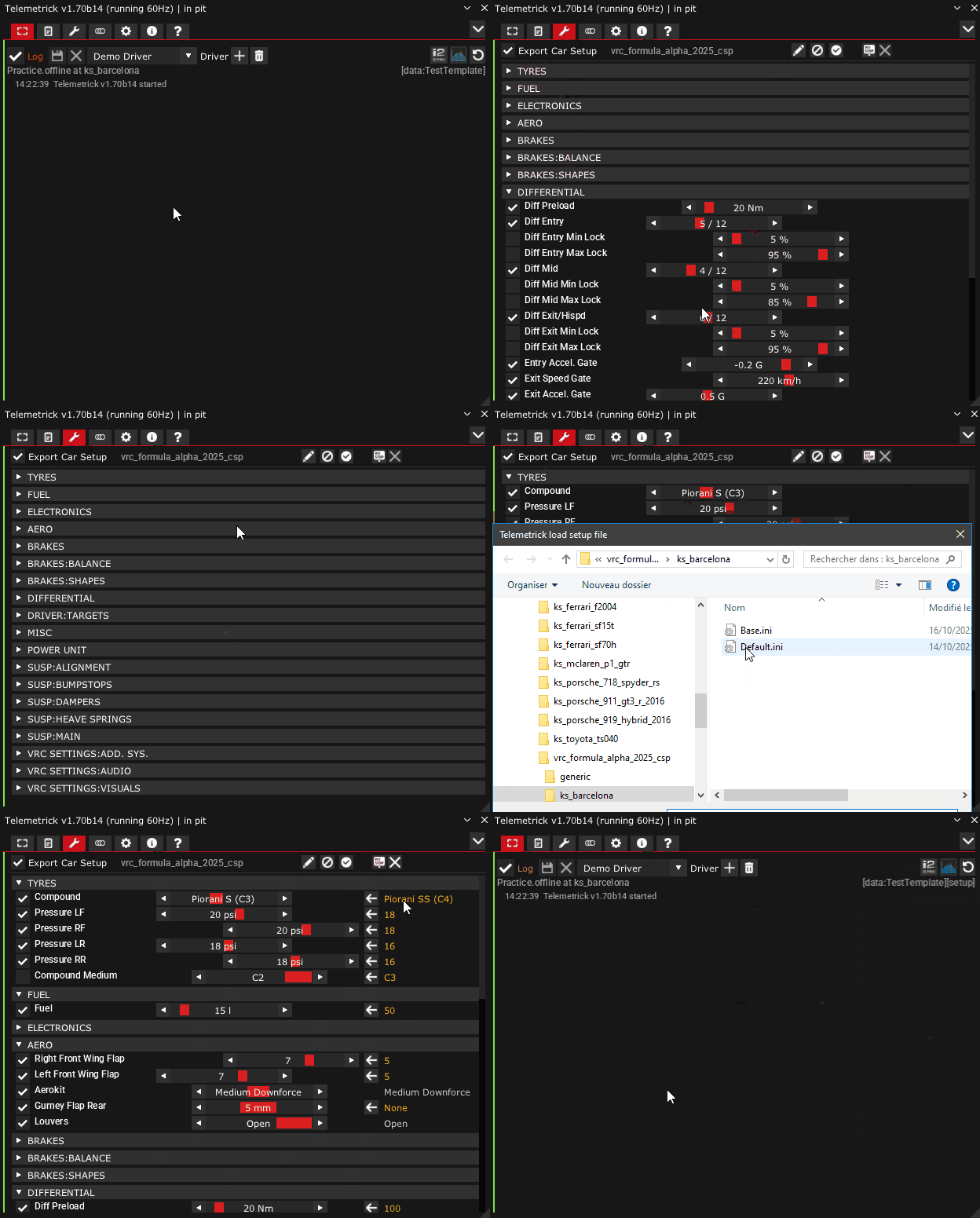
You can also use left/right button, slider click or slider mousewheel to change your current setup.
Provided workspace includes setup pages for some cars, which you can duplicate and adjust to suit your needs.
Here is VRC Alpine Lmdh example:
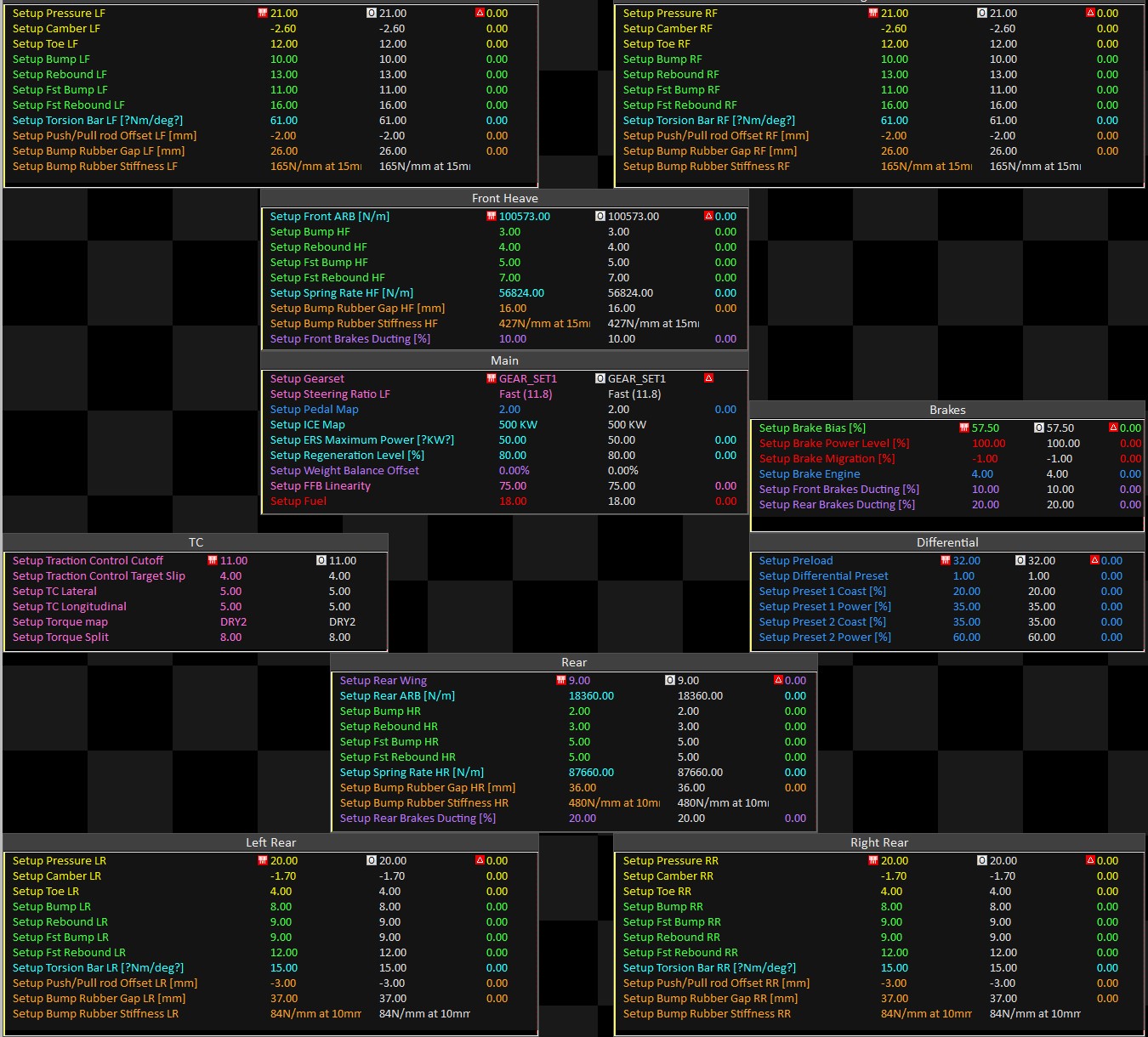
Custom Data
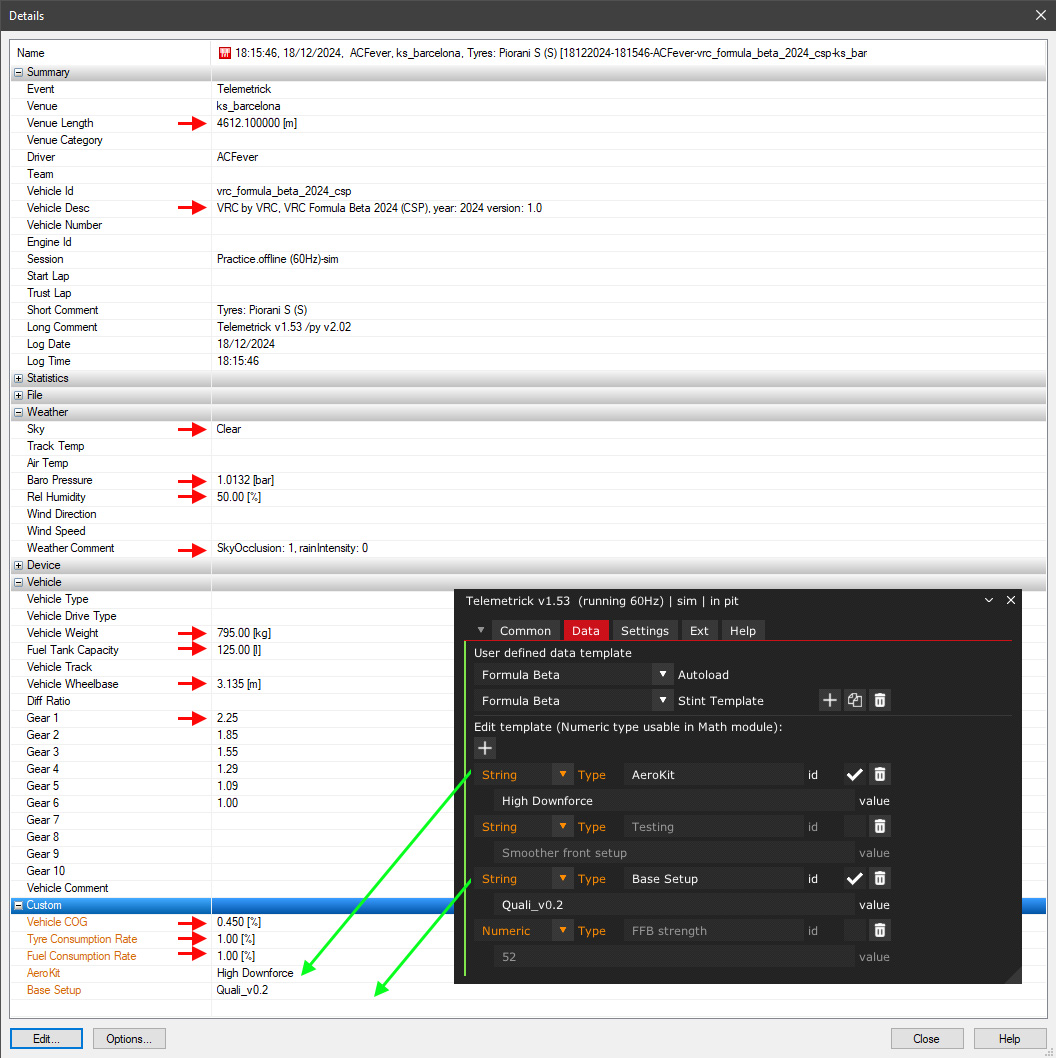
In data tab, first create a new template (+), then add some info (+), either String or Numeric.
Each info can be disabled to still be in this template but not exported in next stint. Use different templates for different cars, different session type, etc. and quickly switch between them.
Numeric info can be duplicated as channel with Math in Motec and be displayed in channel list for example.
You can even override Motec info, like "Venue Category".
Here are details data added by Telemetrick, and an example of custom user data.
Extended Car Channels
For all cars, Telemetrick provides a set of channel (180 actually) with brake/throttle %, steering angle, suspension travel, tyre temperature, etc).
Recent cars using CSP Lua scripting capabilities can provide even more info (Live brake bias, bmig, diff entry/mid/exit, virtual energy tank, etc).
For these car, just check Ext tab to see extended channels that can be displayed in telemetry software.
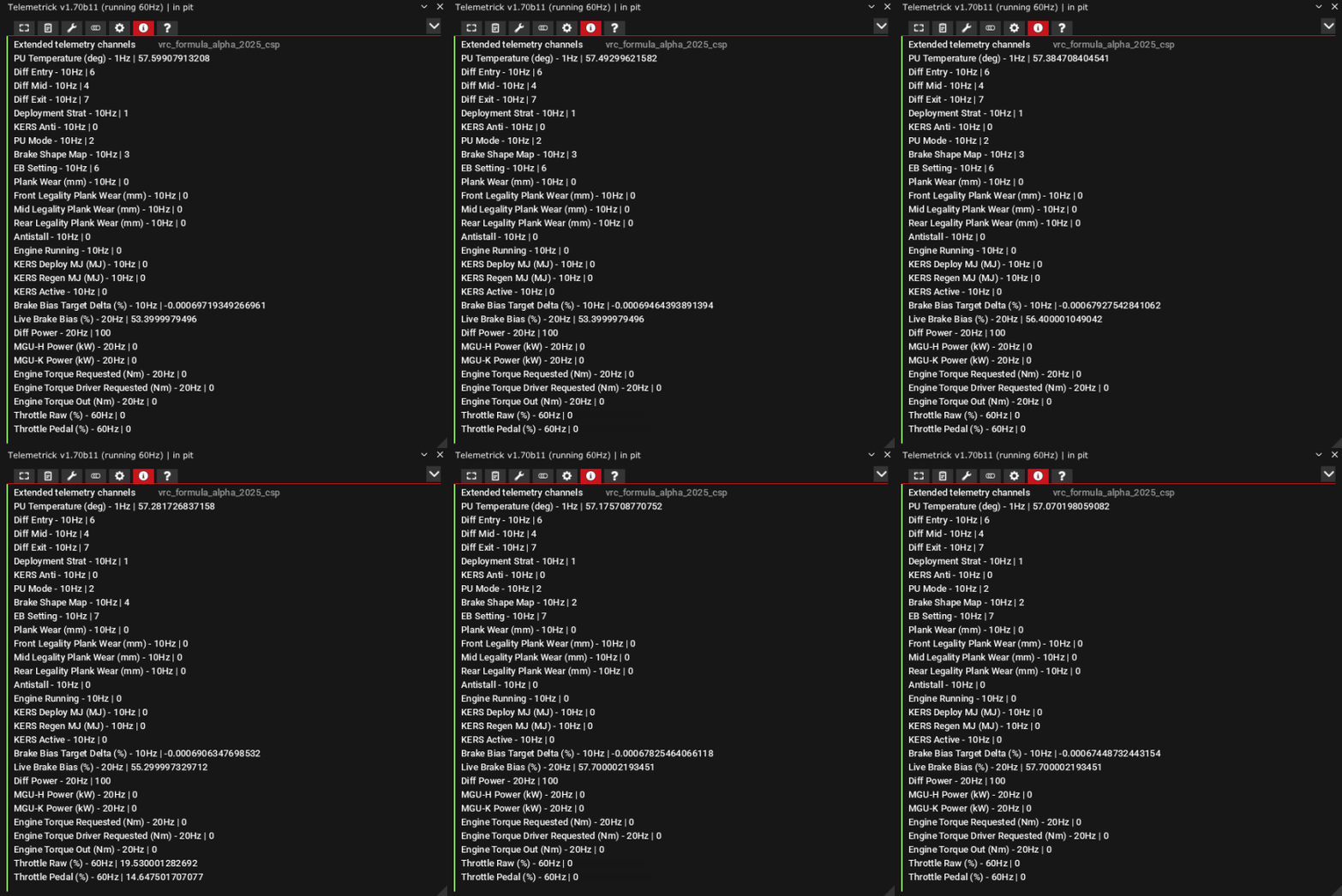
Car with additional telemetry channels are:
- App included:
- VRC Formula Alpha 2024
- VRC Prototype H - Arden V24
- VRC Prototype H - Ferrenzo P49
- VRC Prototype H - Pageau 9T8
- VRC Prototype H - Cadenza V
- VRC Prototype H - Isola Santini
- VRC Formula G 2024
- RSS Formula V12-R
- RSS Formula Hybrid X 2026
- RSS Formula Hybrid 2024
- RSS Formula Hybrid 2025 Alpine
- RSS MPH Callahan V8
- RSS MP-H Lanzo S6 V8 Evo
- Car included:
List of extended data channels per car:
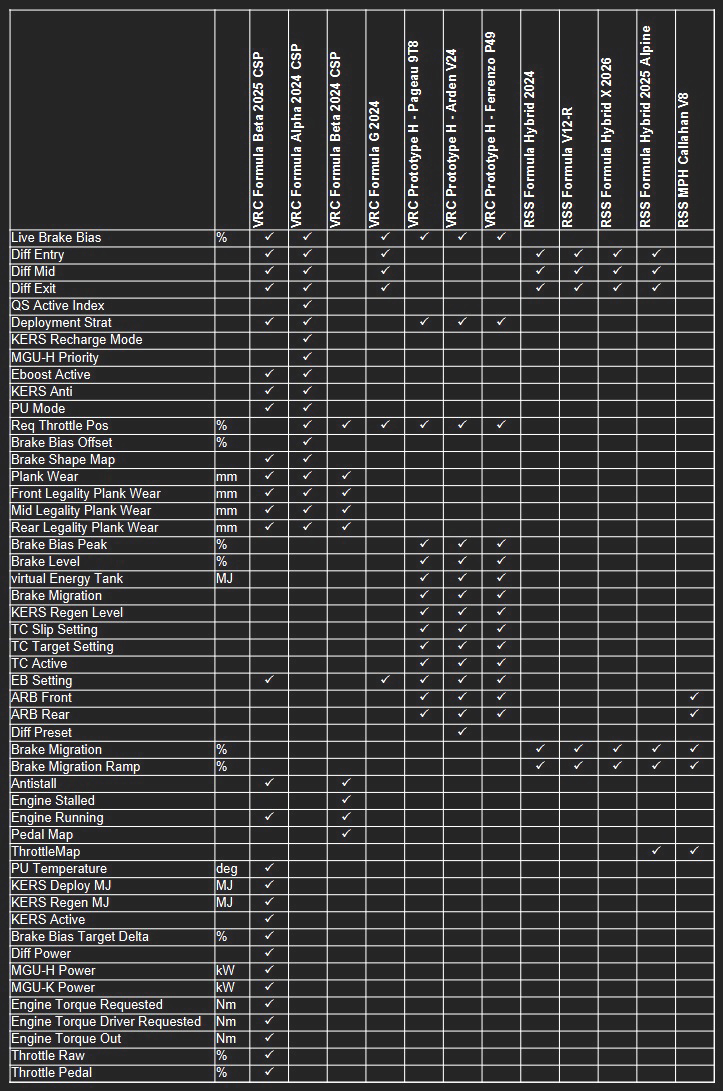
If you are a modder or want to integrate an unsupported car, check Extended car channels: How To.
OBS Studio Integration
Telemetrick can automatically start and stop OBS Studio recording, according to stint logging. It will register the video file into Motec file with correct synchronization decay.
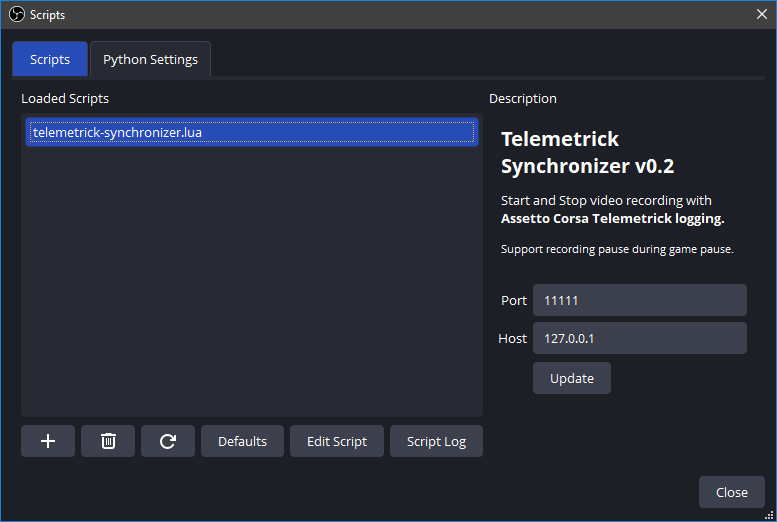
- In OBS Studio, go to Tools / Scripts.
- Click the + button and load app folder obs/telemetrick-synchronizer.lua
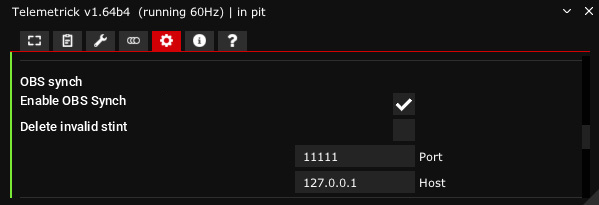
- Check both port and host are same as in Telemetrick settings in AC (and enable OBS Synch in app).
- Keep OBS Studio started.
Provided workspace includes Driver/video with a video window that will automatically load corresponding log video file!
Telemetrick support both installer and portable OBS Studio OBS Project website
Motec tips
Generate track
In Motec, a Trackmap is needed for GPS Track, Track Report, and Track Position elements. You need to generate one in Track Layout Editor only once per track, whatever car you will drive on it.
Such Trackmap allow to always see where you are on the track at cursor position in a graph, but also to compare driver lines!
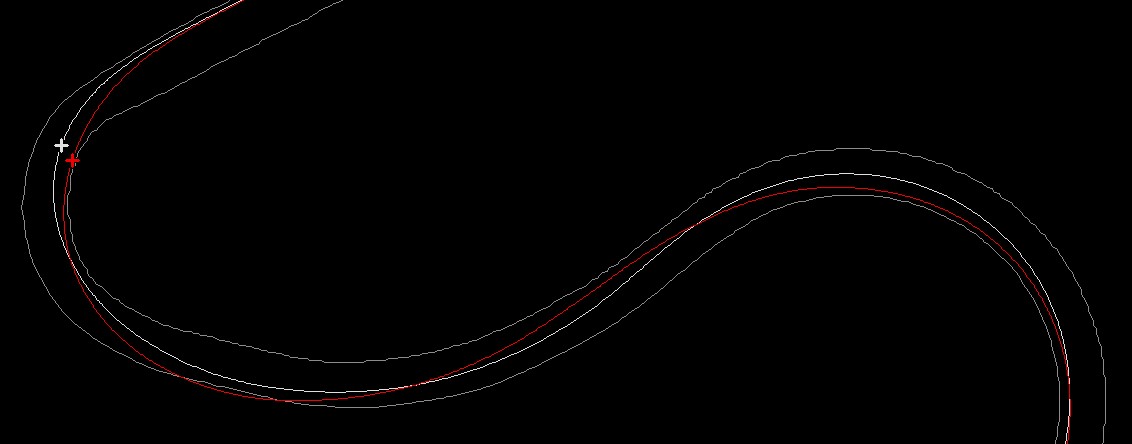
It is recommended to keep Track Layout option check in app settings. Trackmaps provided with the Telemetrick workspace are named with this option enabled.
- v1.70 RC1 and up (require v1.70 Motec workspace):
To get full Trackmap with track borders, you would have to drive two laps, one on the inner side of the track and another one on the outside. But, Telemetrick can automatically generate such a stint, with exact track borders.
In Settings tab, TrackMap Stint, just hit Generate and load the stint in Motec! Being automated, this will be the most precise Trackmap ever!
Once loaded into Motec, just check which lap is outer and inner (in Circuit, Tlmk Stinter. Tthis can varry if track is clockwise or not). You now have to put these two laps as Trackmap:
Tools / Track Editor
- Generate Track: GPS option, select outer line lap on top, select
Outer Lineas Type, hit OK. - Re-open Generate Track, select inner line lap on top, select
Inner Lineas Type, hit OK.
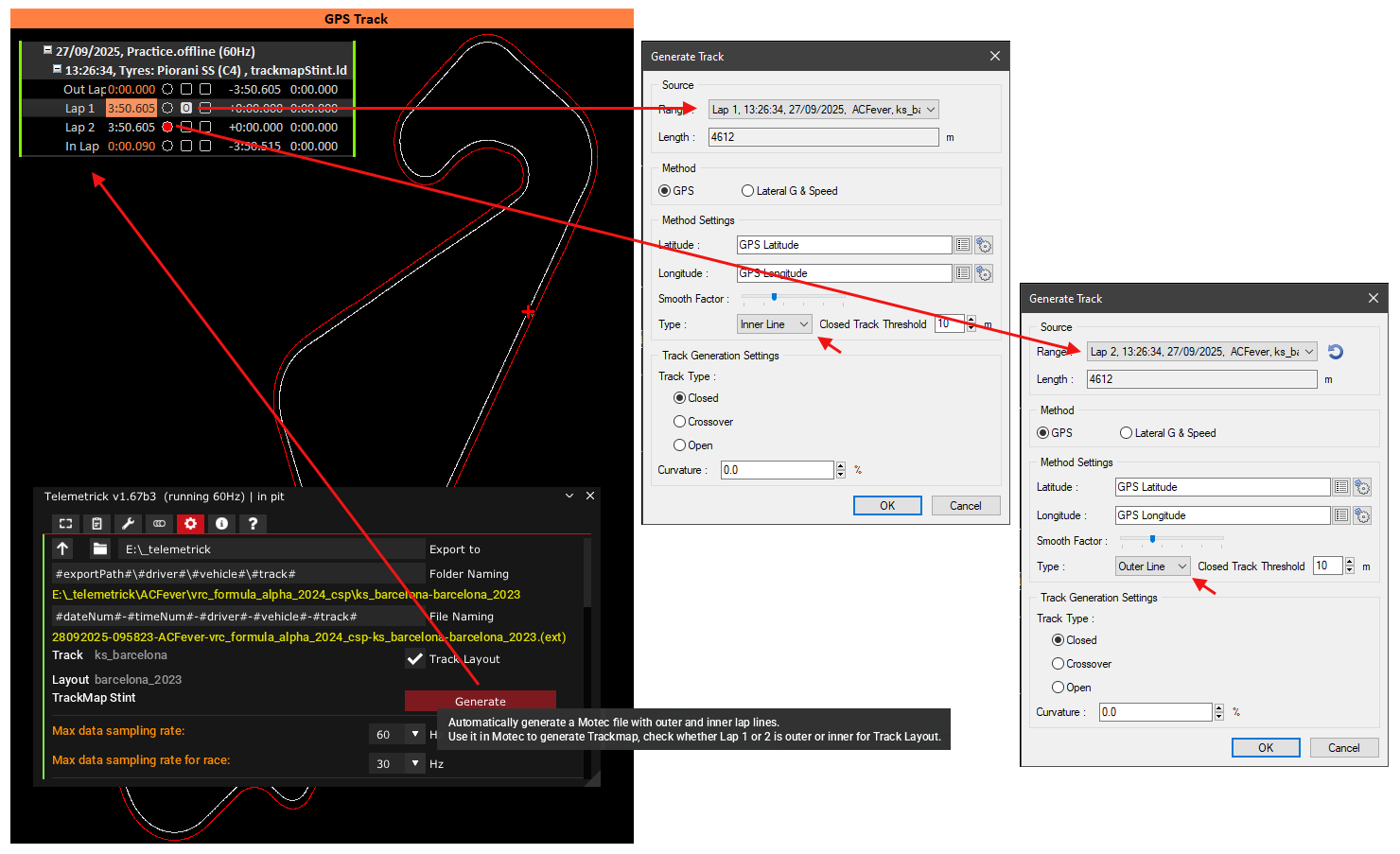
To see track borders in GPS Track element, right click on it, properties, display, check both outer and inner at the bottom.
Once Trackmap is good, you can search on internet for image of the track with corner numbers, and edit sections in Motec to get them right. Start with Generate Sections button and adjust the three parameters. The most faster way here is to get the correct number of corners to not spend two much time adding them later. Then, adjust corners position and if needed, split or delete some straights between corners.
Trackmap generator can fail on some special tracks, and won't work on track without AI spline. In such case, just use method bellow.
- Pre v1.70 RC1:
Drive a clean lap. Clean not specially mean fast, but without wheel-spin, wheel-lock, spin(!) and such. Try to follow a correct line anyway. Then load the stint into Motec and generate a Track Map like this:
Tools / Track Editor, use these options:
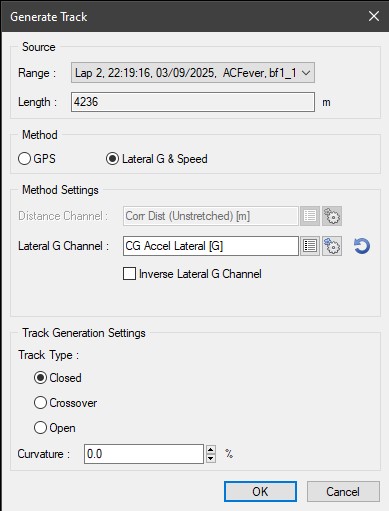
You should now have a correct Track Map, with correct Track distance.
Track Layout option
In app settings, under customized path, we have a Track Layout option.
I would suggest leaving this option checked.
When MoTeC generates your Trackmap, it takes the name of the loaded stint track name.
We can have many skins on the same track in Assetto Corsa, with some skins changing the track layout itself, like removing a corner for example. If all your Motec log have same track name, each time you generate the Trackmap, it will overwrite the previous one. So, you won't be able to load logs from different skins and have the right Trackmap. For example, on Barcelona, all your logs will use the ks_barcelona Trackmap, using GP layout or not (without chicane RACC).
To prevent this and always have the right Trackmap, just check Track Layout option. Then, the track name will use the skin name and generate a different Trackmap per skin in Motec. For example, you would now have ksbarcelona-barcelona2023.
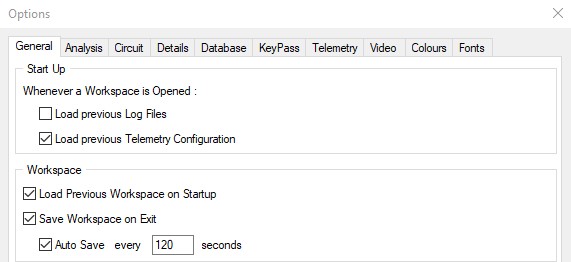
Load Previous Workspace on Startup
To automatically load your usual workspace when you start Motec, set Load Previous Workspace on Startup in Tools / Options.
Database
Motec allow to maintain a database of all your log files, which then allow to look for files regarding some criteria like Year, Venue, Track, Car etc.
In Motec, go into Tool / Options then Database Tab, and set your Telemetrick Export folder into.
Then when opening log files, you can choose Database on top left corner, and click any (+) button to ad some filters!
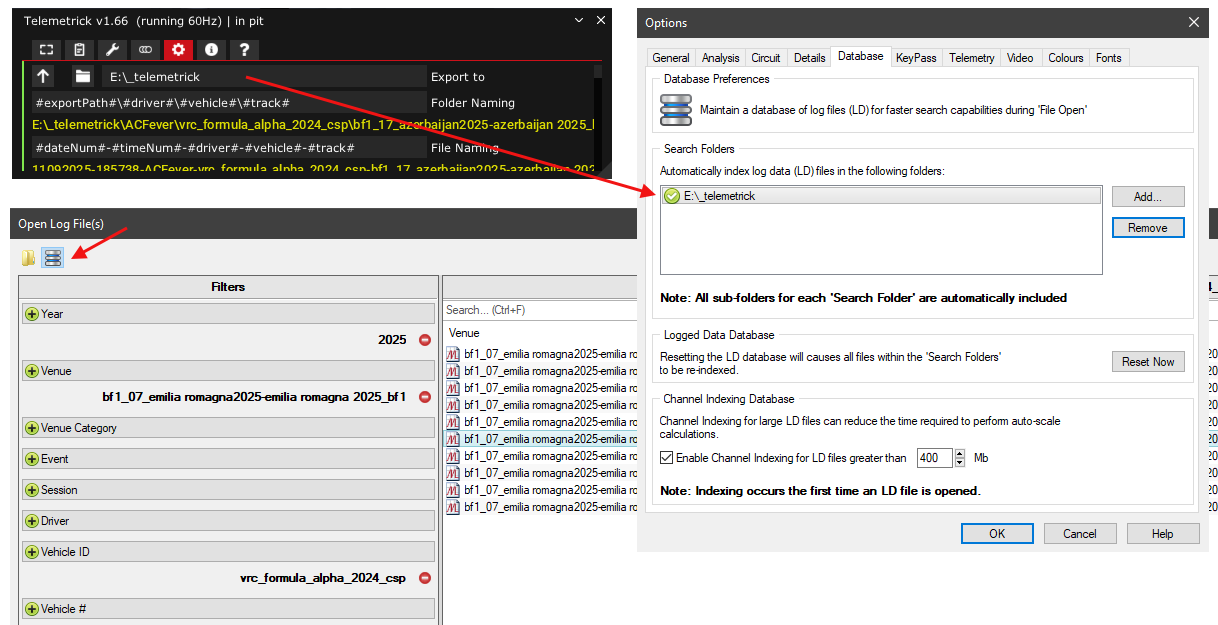
Motec configurations files
Motec stores configuration files into C:\Users\[[username]]\Documents\MoTeC\i2\
What is interesting here is the Workspaces folder, as all is saved here per workspace. If you imported Telemetrick workspace, you should have C:\Users\[[username]]\Documents\MoTeC\i2\Workspaces\Telemetrick
In Motec, you always have one Workspace opened, contained several Workbooks (top select list), each with its worksheet (top tabs).
Inside each workspace folder you will get many config files in several folders:
- Channels: xlm files for aliases, details and mappings. Overrides.xml contains all modification you did to channels, like color display, decimals shown, etc.
- Maths: One xml file per math folder in Motec, with all descriptions and formulas.
- Track Maps: mt2 files generated by Track Editor.
- Workbooks: One i2wkb file per workbook, containing all worksheets and configuration. These are actually xml files.