acViewer
AC Telemetry Viewer is a built-in viewer that provides direct access to driver input telemetry. It is accessible from the (first) Common tab, on the right when in the pit. Or from app context-menu.
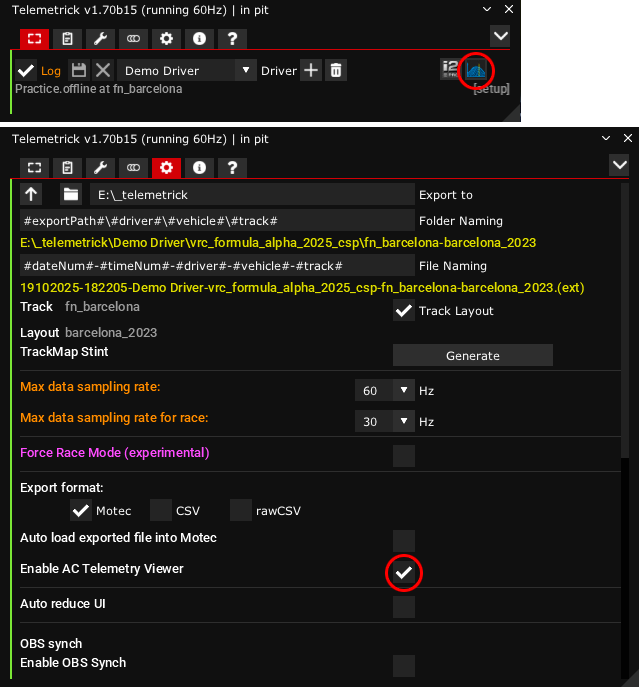
You can use Telemetrick exclusively with this viewer without installing and/or exporting to Motec. If you don't want to deal with Motec's complexity, just don't install it, disable Motec in exporters, and use AC Viewer instead! Or use both, complementary.
One common use is to use acViewer when learning a track, or in quali session to quickly check against a previous reference lap, and use Motec for advanced analysis.
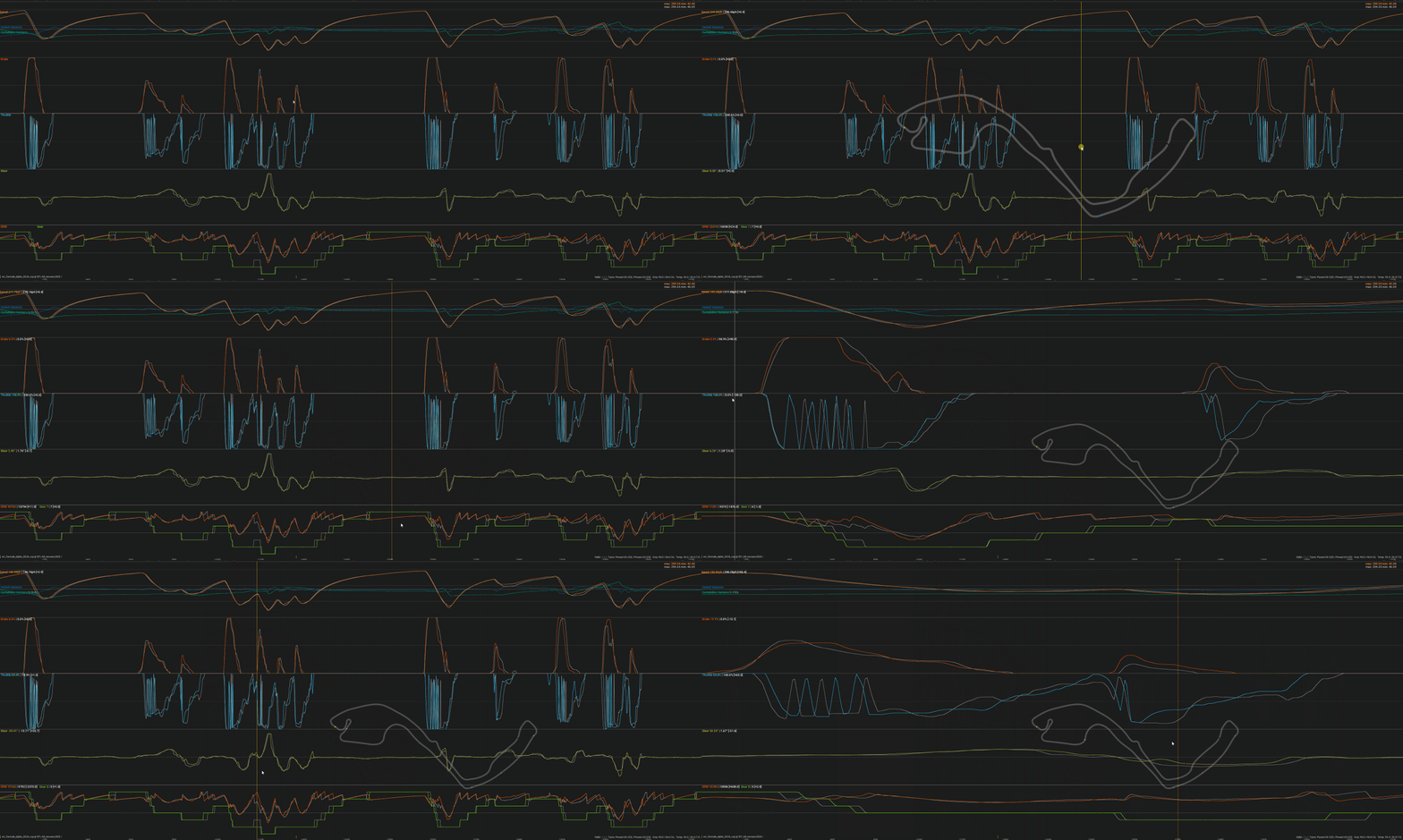
acViewer displays useful information on a distance graph, allowing you to compare two laps from previously exported stints. You'll see all driver inputs (Brake, Throttle, Steering), along with Speed, RPM, Gear, and other important data like tire compound, track grip, air/track temperature, and lap validity.
acViewer also shows instant and cumulative variance (-1s to +1s) between the main and comparison lap. Click on labels to show/hide these variances graphs.
Since v1.71, you can also use an acViewer file in Live Trace module to compare your inputs to, all live while driving!
Tips
- acViewer automatically opens the last saved stint as the main stint.
- When loading a main or comparison stint, it automatically selects the fastest valid lap.
- Mouse wheel over lap selectors to change stint lap.
- Right-click opens a context menu with various different options and features.
- With mouse over the RPM/Gear graph, click+drag mouse to zoom horizontally on the graph (mouse backward button or top bar icon to reset zoom).
- acViewer files can be used as live driver comparison in Live Trace module.
In top bar, you can add a note to currently loaded main stint with pencil button. This note will be shared and visible on acViewer Telemetry Exchange.
Track Map
With the mouse over the graph above RPM/Gear, acViewer displays a track map showing your current position based on the cursor location, along with track sectors and DRS zones.
With the mouse over the track map:
- Mouse wheel: Zoom.
- Left-click: Adjust opacity (horizontally).
- Right-click: Rotate (horizontally).
- Middle-click: Move the map.
Corners markers
Since v1.72, acViewer display vertical dotted line for corners. This allow to talk about same corner while sharing telemetry and tips!
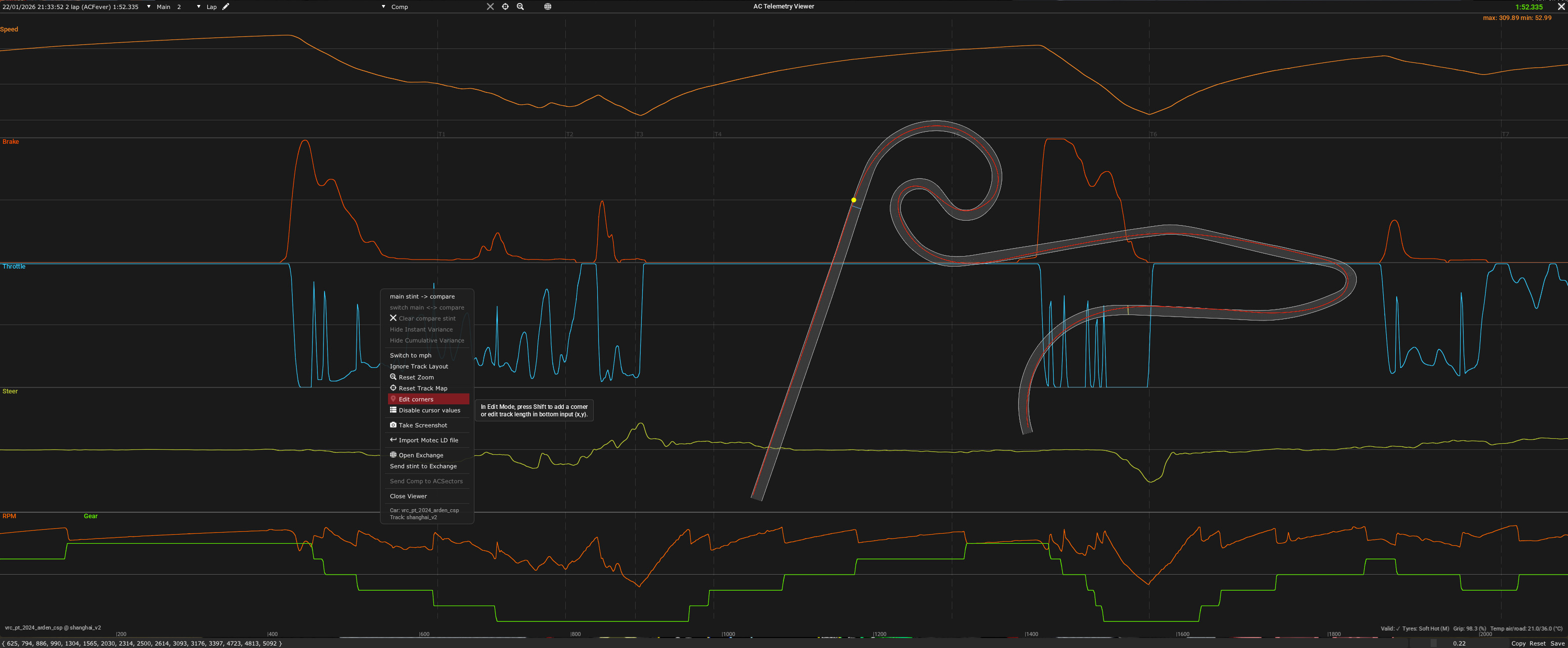
Not all tracks have corners registered, and there is no way to automate this as different tracks have different rules to define corners (track history, layout changes, etc). Tracks often have sections ini file but too many are just wrong to use them.
Main file for corner definition is: assettocorsa\apps\lua\telemetrick\assets\data\trackscorners.json
If a track doesn't have such data, you can right click in acViewer and Edit Corners. At the bottom of the viewer, you can edit each corner distance, or press Shift key to add one at cursor position. You can refer to track corners on google to get good ones. For tiny corner or chicane, zoom on these corners before adding them to be more precise.
Once you have set all corners, you can use Copy button to get definition in clipboard and share it on our Discord so we can add them for everyone.
Hit Save will save them in ACDocuments\apps\telemetrick\trackscorners_user.json for next sessions.
You can also change opacity of Tx texts and vertical markers with the slider in Edit Corners mode.
Telemetry Exchange
acViewer inside Telemetrick allow you to share simple telemetry with others, and import other driver simple telemetry to compare yourself with.