App Tips
Track Note / Car Note
In Custom Data tab, you can store track-specific and car-specific notes.
- Track Note: Available when driving on this track, whatever car and layout.
- Car Note: Available when driving this car, whatever track.
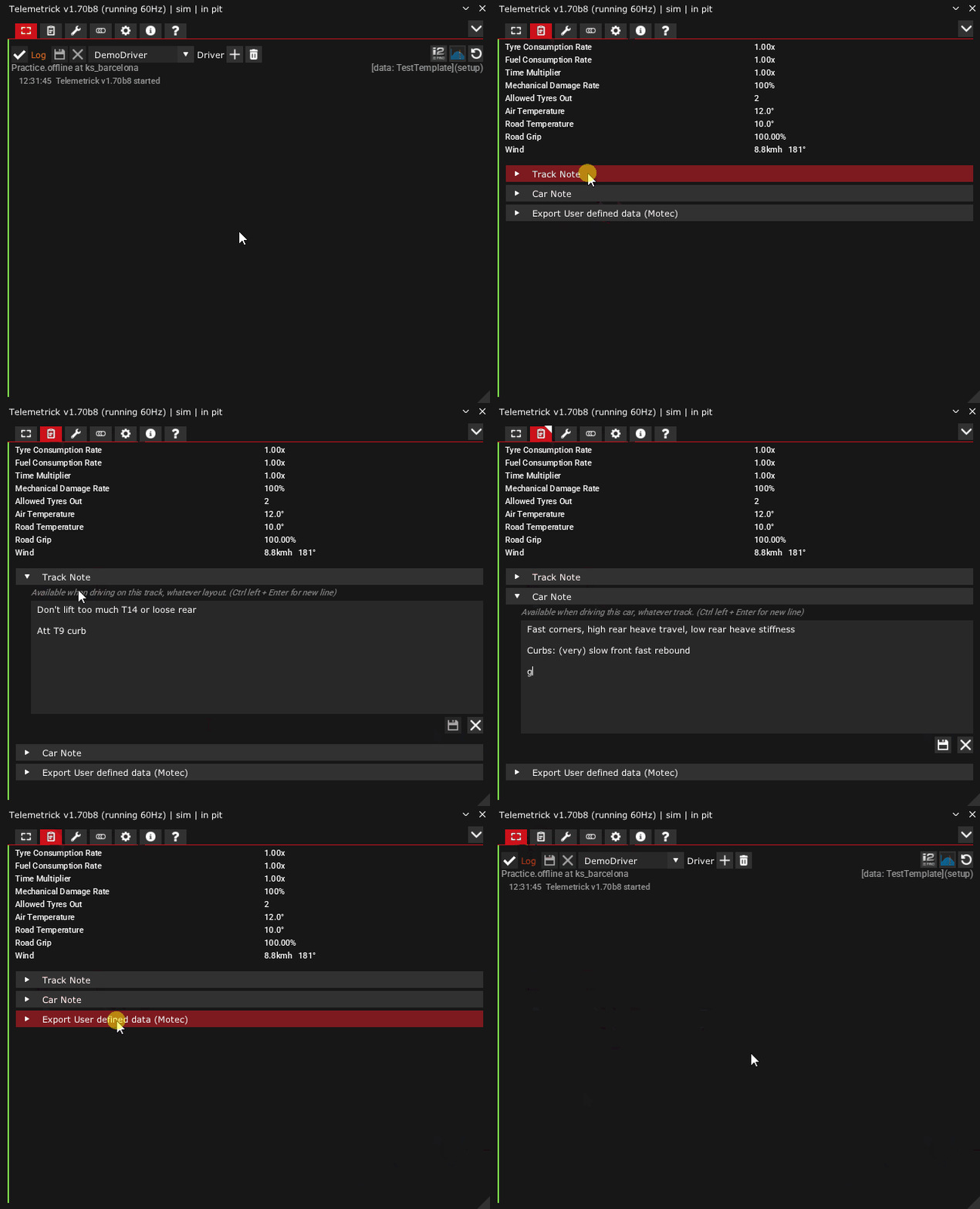
Inside the note field, left Ctrl + Enter will create a new line...
Setup Compare
In Car Setup tab, you can load another car setup ini file. Usefull to compare your setup with other track setup or with friends setup.
For each setup value, it will display the loaded setup value beside your current value, and a button to set your current setup value to this loaded setup value!.
You can also use left/right button, slider click or slider mousewheel to change your current setup.
So, you can basically compare to another track or friend setup, or a reference setup, and merge some sections / parts of a setup into current one!
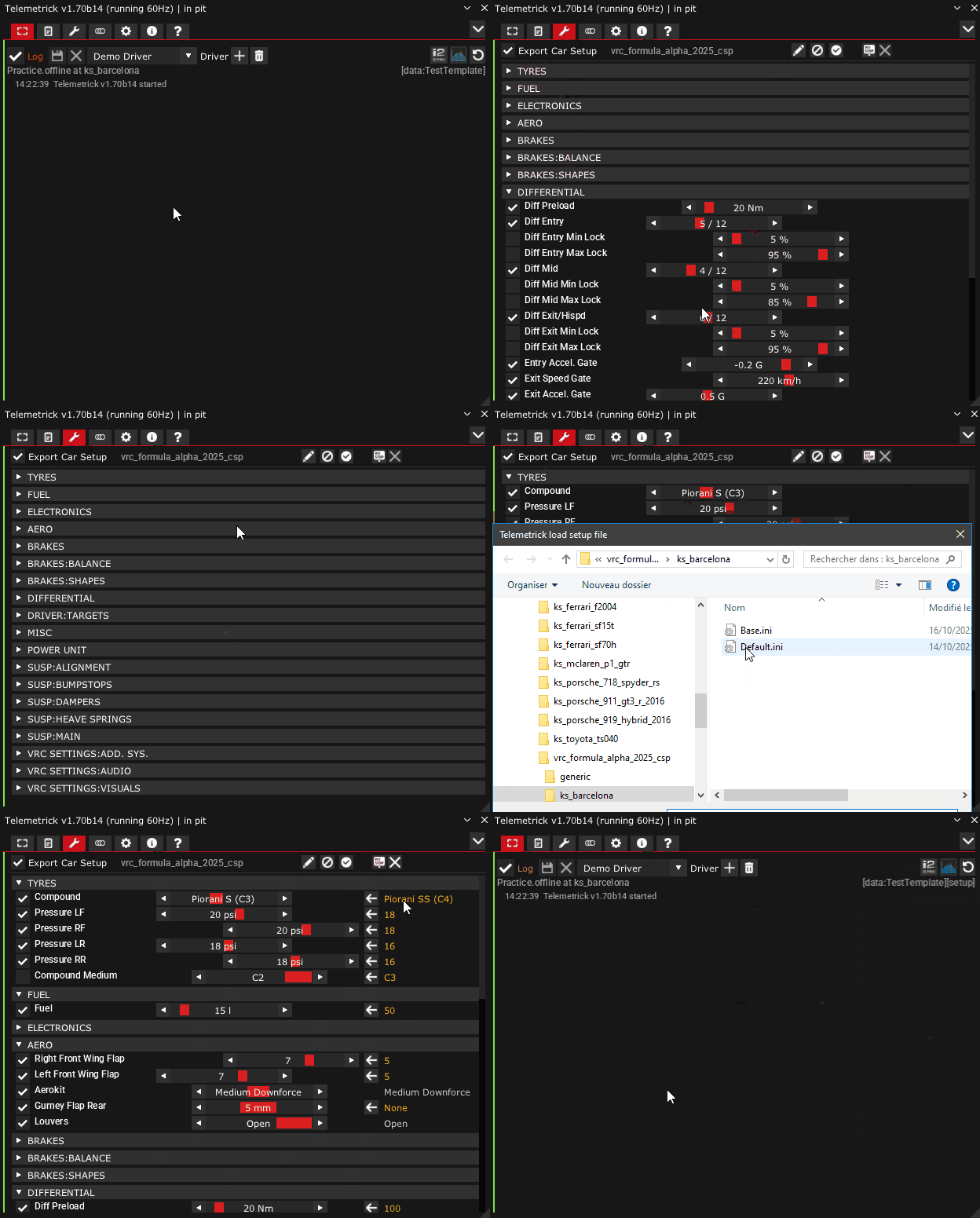
You can also keep a default_setup.ini file to easyly compare your current setup to default one, and even set back some specific value to default.
Toggle Max Size
When in pit, you have a Toggle Max Size button on top right. Use it to toggle UI state between Max Size and your own current resized dimensions / position.
It does allow easy editing of Track Note, Settings, Setup Compare, by quickly maximizing the UI and getting back to previous position and size.
Available only when not logging.
Auto Reduce UI
Telemetrick works with hidden UI, but a lot of stuff can be done in the UI and it's often useful to let it be shown somewhere.
This is why there is a setting to Auto reduce UI.
With this setting enabled, each time you go out of Pit (or in Race), the Telemetrick UI will reduce itself to just the title bar! Once back in the pit, it will switch back to the same state as it was before so you can continue.
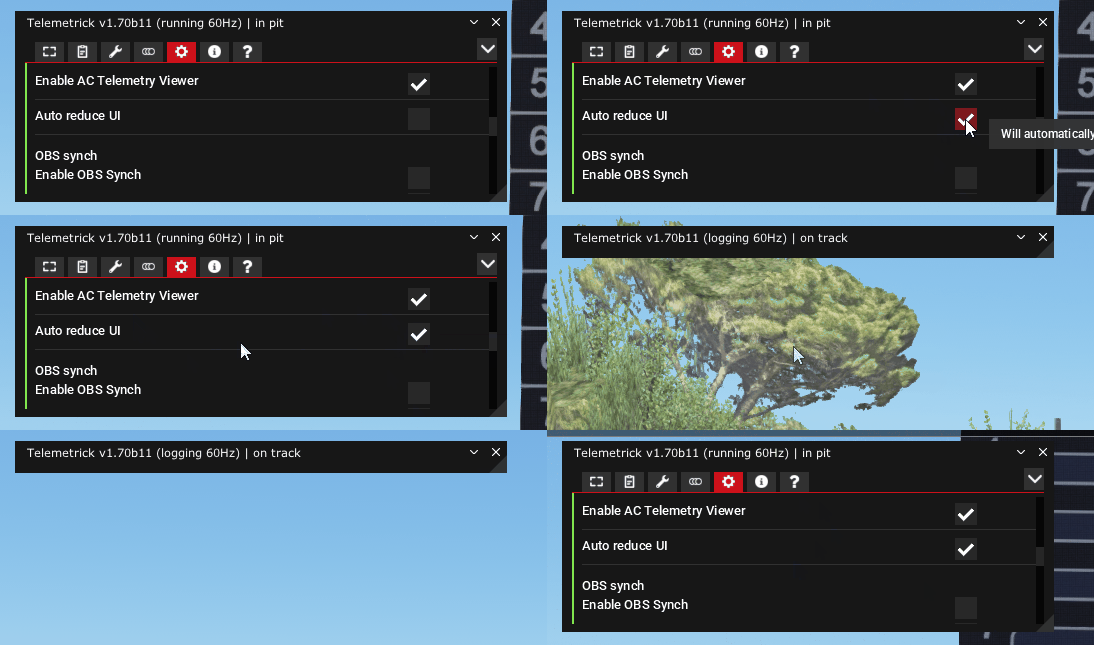
When Auto reduce UI is enabled, as you can't see the log showing new lap, pit time etc, a popup on the bottom left of the screen will let you know that logging has started, stopped, etc!
Mark button
The Mark button is commonly used in F1/F2/WEC practice sessions to highlight a specific moment in telemetry data while driving.
This marker appears in the telemetry, allowing you to analyze other car channels at that precise moment.
In the Settings tab or Extended Control App, you can set a shortcut for this function. While driving, press or hold the button. In telemetry, all press actions will last at least 0.5s.